Colt help
You can add up to two descriptions to each phone number to give your reports more meaning in Usage Analyst. Add descriptions to one phone number at a time using the online form, or add descriptions to multiple numbers at once by uploading a spreadsheet (saved as a .csv file) to Usage Analyst.
Adding a description to one number at a time
To add a description to a phone number:
- Click Monitoring, click Voice Reports, then click Usage Analyst.
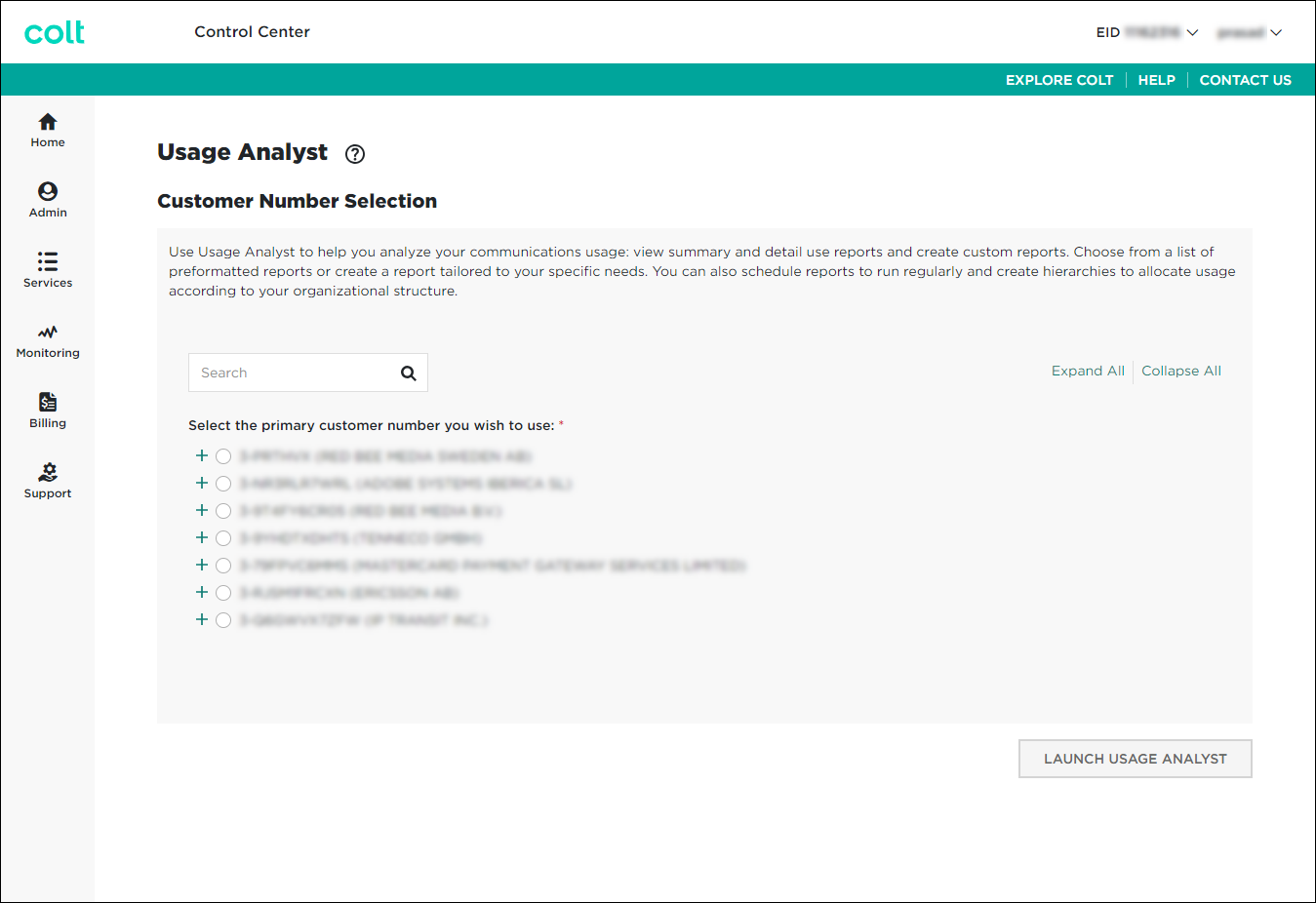
- Select the radio button next to the account you want to view, then click LAUNCH USAGE ANALYST.
Control Center opens Usage Analyst in a new tab. (Depending on whether you have Bill Analyst or Usage Analyst set as the default view, you may have to click View: Usage Analyst in the upper-right corner, and select View: Bill Analyst to change views.)

- Click the Setup tab.
- In the Descriptions section, click Phone Numbers.
- Click Add Phone Numbers.
- Type the phone number(s) you want to add description(s) to and one or two descriptions for each into the form.
- Click Save.
Adding descriptions to multiple numbers at once
You can upload a list of phone numbers and their descriptions to Usage Analyst.
Create an Excel spreadsheet in which column A contains the phone number (format: xxx-yyy-zzzz), column B contains Description 1, and column C contains Description 2. Save the spreadsheet as a .csv file.
To add descriptions to multiple phone numbers:
- Click Monitoring, click Voice Reports, then click Usage Analyst.
- Select the radio button next to the account you want to view, then click LAUNCH USAGE ANALYST.
Control Center opens Usage Analyst in a new tab. (Depending on whether you have Bill Analyst or Usage Analyst set as the default view, you may have to click View: Usage Analyst in the upper-right corner, and select View: Bill Analyst to change views.)
- Click the Setup tab.
- In the Descriptions section, click Phone Numbers.
- Click Import Descriptions.
- Do the following:
- Select the .csv file file you want to upload.
- If the phone numbers in your list already have descriptions, click one of the radio buttons to Replace existing descriptions or Keep existing descriptions.
- Select the .csv file file you want to upload.
- Click Save.
Usage Analyst gives you a confirmation message.
Not quite right?
Try one of these popular searches:
Explore Control Center
Top 10 articles
- Troubleshooting login problems
- Retrieving your username or password
- Signing in to Control Center
- Adding accounts to an enterprise ID
- Requesting a PDF copy of an invoice
- Creating a repair ticket
- Creating a disconnect request
- Deactivating or reactivating a Control Center user
- Creating a new user
- Editing a notification setting


